Product images
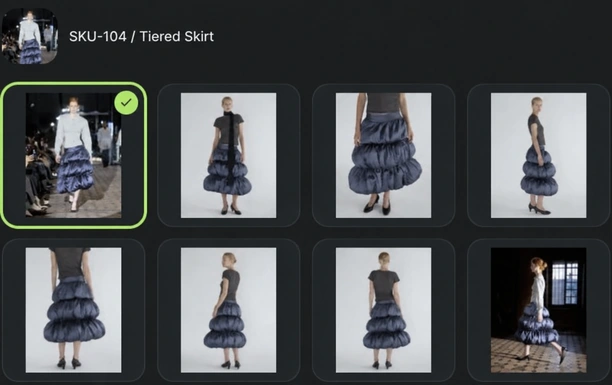
Review the imported images and choose an appropriate product reference. Add a clearer image when the available ones do not show what the video needs.
URL TO VIDEO AI
Paste your store homepage URL to bring in available product details and images.
Review the information, shape your video plan and generate the concepts you choose.
I already have a product photo →Start with the storefront where your products are listed. Snaptale reads the business context and imports available product names, descriptions and images.

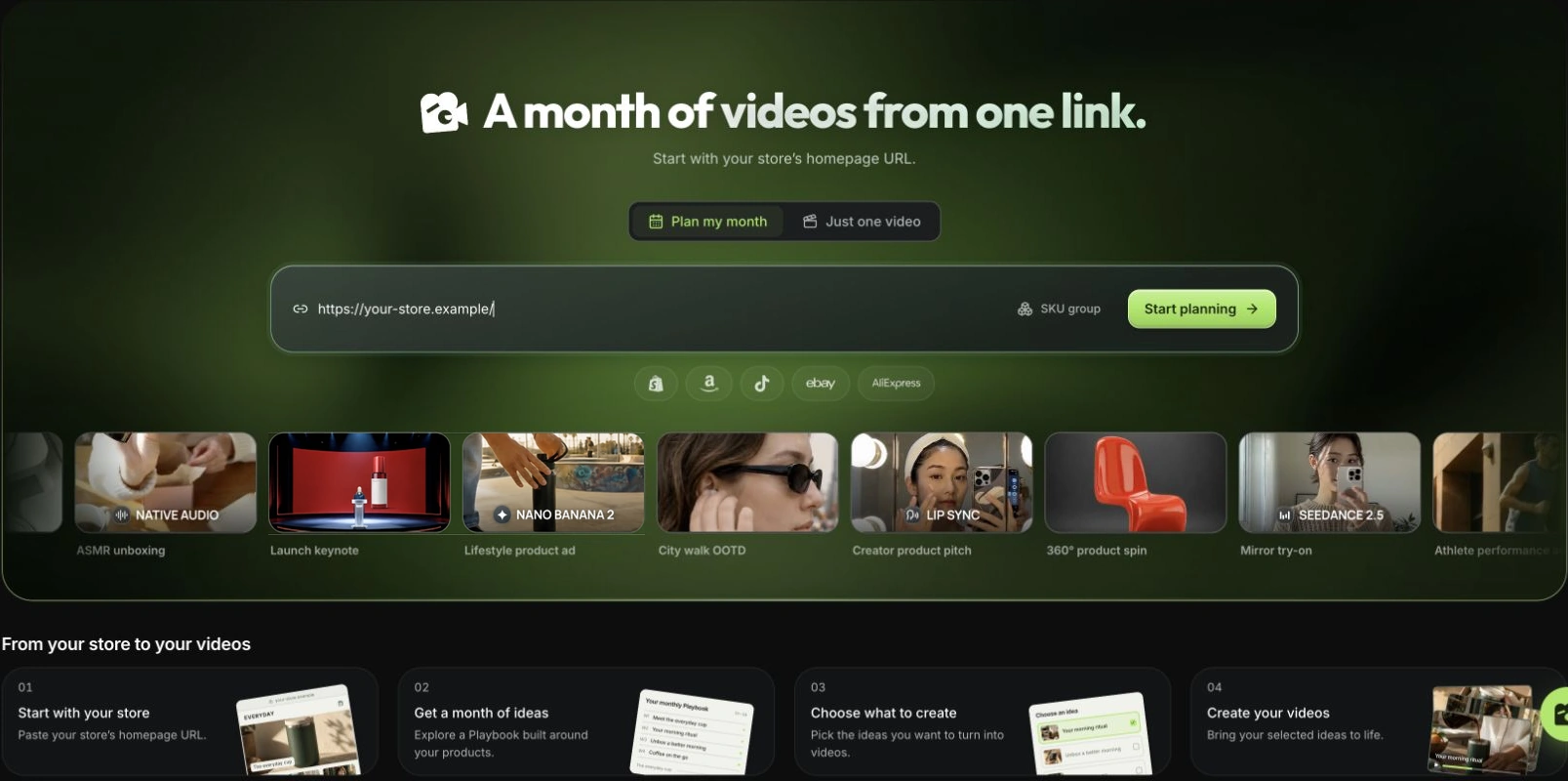
Check the business profile and product library. Correct a description, replace an unsuitable image or add a missing product before using it in a video.
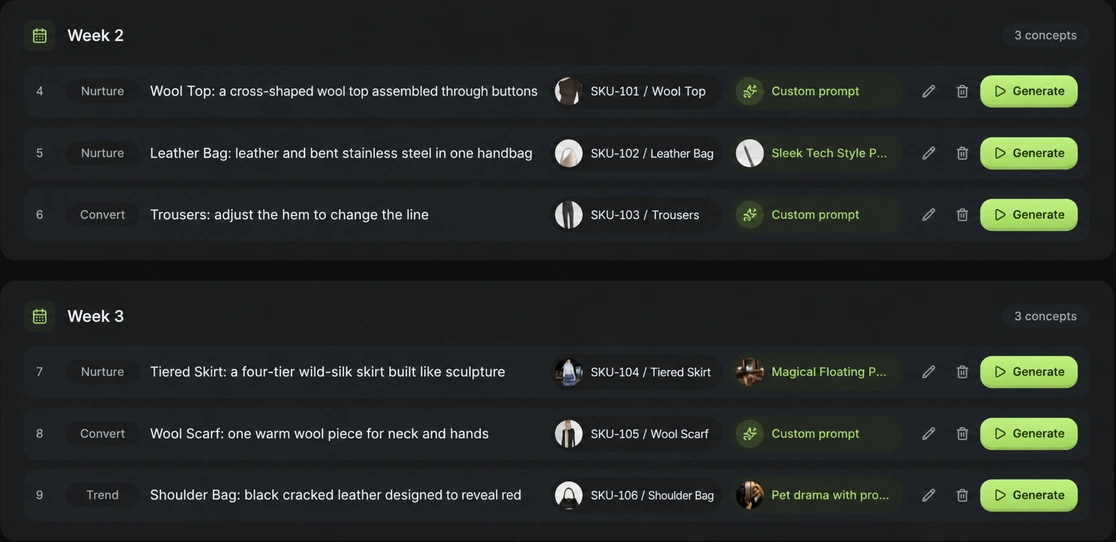
Your Playbook connects products to proposed topics, formats and reasons. Review the ideas, change a product or direction where needed, and select a row to generate.
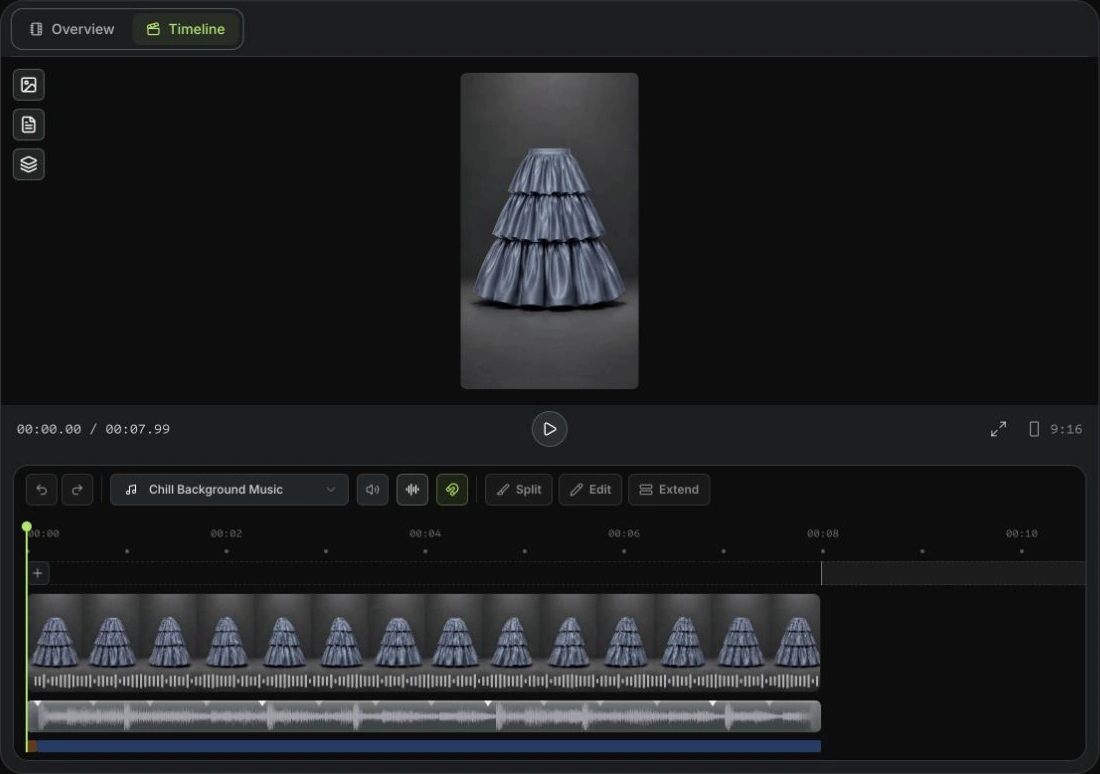
Review the generated shots, voiceover, music and captions. Make the final edits and export. Open the project again from its Playbook row when you want to continue working.
Review what Snaptale can read from your store, then use it as the starting point for your video concepts.
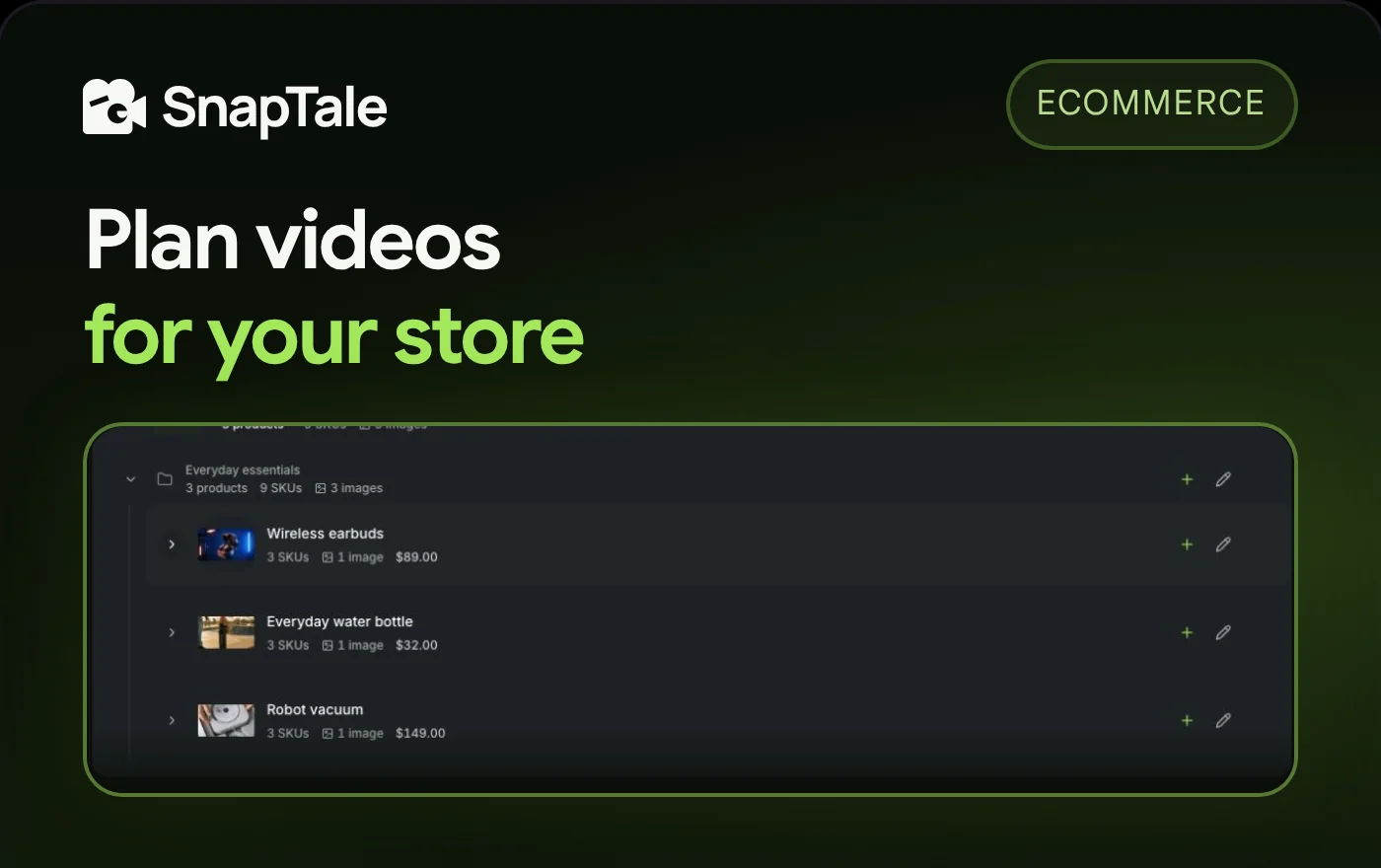
Review the imported images and choose an appropriate product reference. Add a clearer image when the available ones do not show what the video needs.
Names and descriptions give the concept something specific to work with. Check the imported facts and correct missing or outdated details.
Review the proposed business profile so the plan starts with a useful description of your store and what it sells.
The listings already have images and descriptions. Bring those into the workflow so you can begin reviewing ideas without first collecting every file by hand.
Select a different imported product in the plan. Its saved details and images give the next concept a starting point without another round of copying and pasting.
Keep what is useful and correct what is missing. Edit the product information or add a better image, then select the corrected reference for the concept you want to make.
Choose your saved store group to build a new Playbook from its products and confirmed profile. When the catalogue changes, use the product refresh flow to bring in the updates.
Product descriptions and images help the plan start from the business you already run. Confirm the information before moving into production.
The shared library keeps product details and references available for later concepts. Edit them in one place and use the saved products when planning again.
Review the saved products and add missing details or references. Select the right product and image for the next concept you make.
Choose a saved store group to plan from what is already in your library. Use Update products, or enter the store URL again, when you want Snaptale to read the store again.
Use your store homepage URL. This workflow is built around the store and its products, rather than a single product page, blog article or social profile.
No. Snaptale imports available product images from the store. Review them and add a replacement if a product needs a clearer or more suitable reference.
Coverage depends on what can be read from the store. Check the imported products and add missing information or references. Select the corrected product in the concept you want to generate.
No. The store link supplies business and product information. Snaptale uses that context to propose video concepts and generate the pieces you select.
Yes. Choose a saved store group to make another plan from its library and confirmed profile. Refresh the products when you need newer store information.
No. Library changes do not rewrite existing projects or generated videos. Select the updated product reference for a new concept when you want to make another video.
No. A concept can use a recipe or a custom scene plan. Review the product references and required inputs before generating.
No. You review the Playbook and generate selected rows individually. You decide which concepts move into production.
Paste your store homepage URL. Review the products, choose the ideas and make the videos you need.
Start with my store linkHave a photo instead? Start with a recipe →
Review first. Generate selected videos.
Snaptale reads your store, suggests a month of product video ideas, and lets you review each idea before turning it into a video.