
Features

AI CONTENT PLANNER FOR ECOMMERCE VIDEOS

Plan a month of product videos from your store link.

See what to make each week and why. Start with your store homepage URL to build a monthly video plan around your products. Adjust the topics, products and weekly mix, then make the selected videos.

Give launches, offers and the quieter weeks a place in the same plan.

I already know which video to make →
Sample plan with four weekly video concepts, products, formats, goals and reasons
Sample plan · Illustrative Playbook, not a live account
HOW IT WORKS

From your store to a month you can work through.

  1. 01

    Start with your store and products

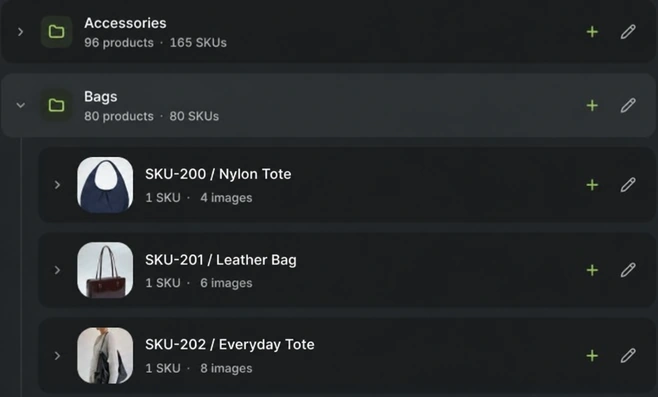
    Paste your store homepage URL and review the imported business context and products. Returning to the same business? Select its saved store group as the starting point for another plan.

    Product library showing Leather Bag, Nylon Tote and Everyday Tote
    Product UI · Example data
  2. 02

    See the month before you make it

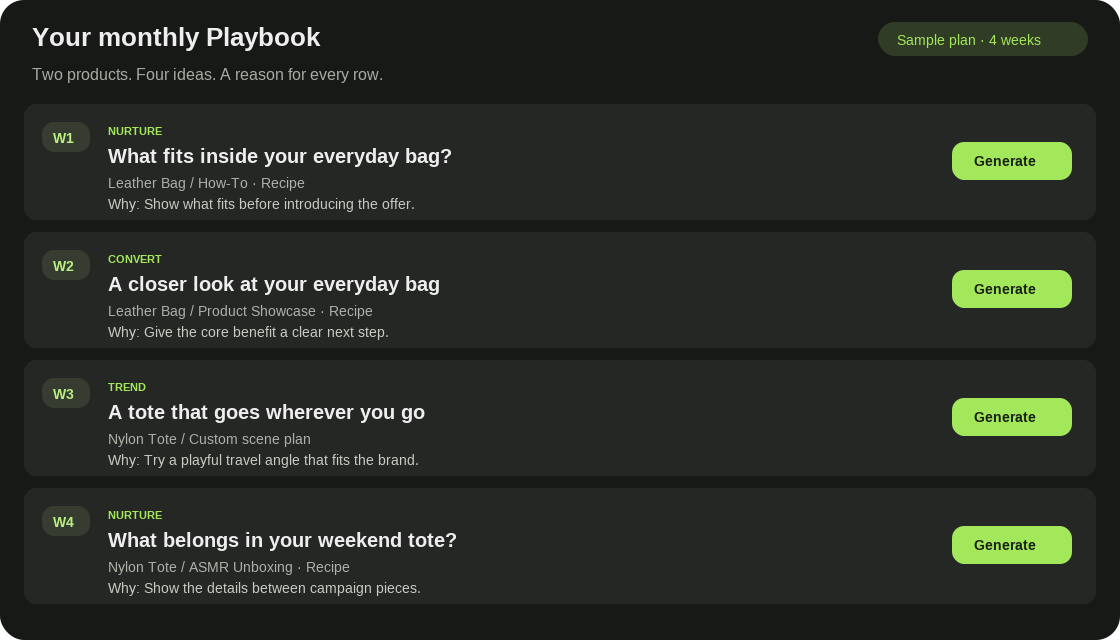
    Review the proposed videos across four weeks. Each row connects a topic to a product, format and goal, with a reason for making that piece. Check whether the mix reflects the month you have ahead.

    Sample monthly Playbook organised across W1 to W4
    Sample plan · Illustrative view
  3. 03

    Make the plan fit your priorities

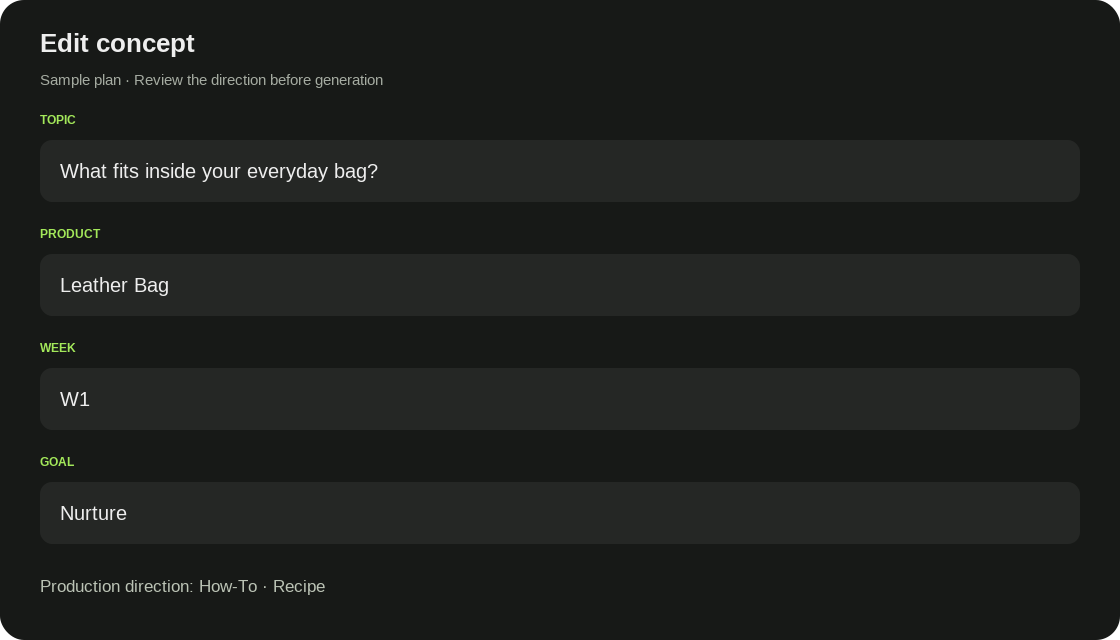
    Change a topic, move a concept to another week or adjust its goal. Choose a different product or production direction, and add a concept when something is missing. Review the weekly mix before you start production.

    Illustrative concept edit showing product, topic, week and goal
    Sample plan · Illustrative view
  4. 04

    Work through the plan one video at a time

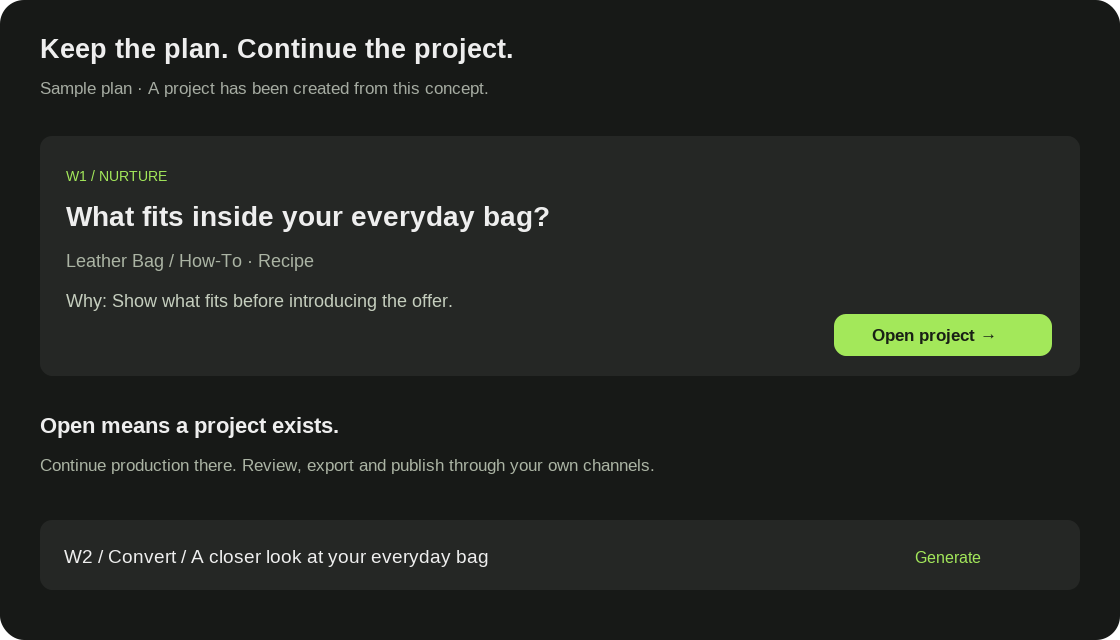
    Choose a row and generate its video. Return to the Playbook to open the projects started from its rows and continue production there. Export the finished videos and publish them through your own channels.

    Illustrative plan row with Open project action; project exists, not a completion status
    Sample plan · Illustrative view

Balance the roles of the videos across your month.

Convert, Nurture and Trend make the proposed content mix easier to review. Each concept still needs a product, a reason and a practical way to become a video.

Nurture: Help shoppers understand the product

Help people understand the products before asking them to buy. Use details, explanations or demonstrations to answer useful questions.

Sample plan

W1 · Leather Bag

What fits inside your everyday bag?

How-To · Recipe
Convert: Give an offer a clear next step

Give a product benefit or current offer a clear next step. Keep the message focused on the action you want the viewer to take.

Sample plan

W2 · Leather Bag

A closer look at your everyday bag

Product Showcase · Recipe

Trend: Give products a timely or playful angle

Give a product a timely or more playful presentation when the idea fits your brand. Review the relevance before making the piece.

Sample plan

W3 · Nylon Tote

A tote that goes wherever you go

Custom scene plan

A concept can use a matched recipe or a custom scene plan. Review the direction and references before generation.

Explore the formats behind the plan →

Answer the questions that leave a content calendar empty.

What belongs before, during and after a promotion?

A promotion needs context as well as an announcement. Review the weekly sequence so product introductions, the offer itself and follow-up explanations each have a place. Adjust the topics and week assignments to reflect your actual campaign timing.

What do we post when nothing is launching?

Use quieter weeks for product details, demonstrations and questions customers might have. Review which suggested ideas deserve space between the campaign pieces.

Are we showing the same product every week?

See the products across the plan instead of deciding in isolation. Swap a subject when one item dominates or add a concept for something you want to feature.

How much can we realistically make?

Review the proposed workload before starting production. Generate the pieces you need first and come back for the others when you are ready.

Which ideas already have a project?

Return to the same Playbook as work progresses. Open the projects already created from its rows, and choose which remaining concepts to make next.

Why plan with Snaptale

See the whole month together

Compare topics, products and goals across W1–W4 before making the first video. Spot a crowded week or a repeated message while the plan is still easy to change.

Each row explains its place

The topic, goal and reason help you assess the suggestion. Keep what fits, challenge what does not and change the direction before generating.

Planning connects to production

The product reference and recipe or custom direction stay with the concept. Generate a selected row and open its project from the plan to continue working.

Adjust the week and purpose

Move a concept to another week or change its goal as your priorities shift. Review the revised mix, then choose the next piece to put into production.

Frequently asked questions

What does the content plan generator create?

It creates a monthly video Playbook organised by week. Each concept includes a topic, product, goal and reason, with a recipe or custom scene plan to guide production.

Do I need to prepare product photos or a spreadsheet first?

No. Start with your store homepage URL and review the products and images imported from it. You can correct details or add references where needed.

Is this a content calendar?

It helps you organise a month's video content across four weeks. The Playbook connects the planned ideas to video creation; it is not a social scheduling calendar with publishing dates and automatic posting.

Can I choose how many videos to plan?

You can choose from the plan-size options available in Planning. Review the resulting workload, then generate selected pieces at your own pace.

Can I change the suggested topics or products?

Yes. Edit the topic, product, week, goal or production direction, and add a concept when you need another idea. Review the changes before generating. Editing a row that already has a project updates the plan; add a new concept to make another video.

What do Convert, Nurture and Trend mean?

They describe the intended role of the content: encourage action, build understanding or use a timely creative angle. They are planning labels, not performance scores.

Can I use it for the same store next month?

Yes. Start another plan from a saved store group with its products and confirmed profile. Refresh the catalogue when the store information changes.

Will it create and publish every video automatically?

No. You choose individual rows to generate, review the finished videos and export them. Publishing happens through your own channels.

Does it use my ad results to decide what comes next?

This workflow starts from business and product context. It does not connect advertising results to automatically optimise the next plan.

How is Planning usage counted?

Check the Playbook allowance in your account. Planning has plan-specific limits.

Open next week with a plan, not a blank page.

Paste your store link. Review the month, adjust the mix and start making the videos you have chosen.

Plan my video month

Know what to make today? Start with a recipe →

Review the month first. Generate selected videos.

Recipe library →

Keep reading